
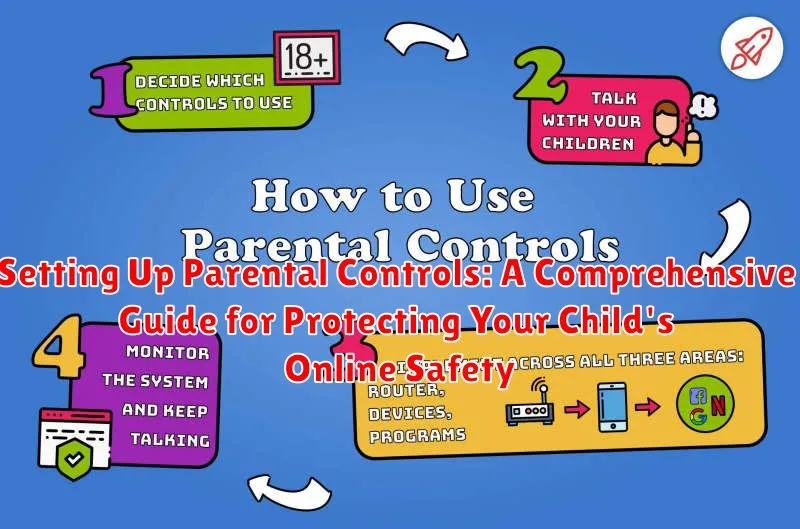
In today’s digitally driven world, ensuring your child’s online safety is paramount. The internet offers incredible learning and entertainment opportunities, but it also presents potential risks like exposure to inappropriate content, cyberbullying, and online predators. Setting up parental controls is a crucial step in mitigating these risks and creating a safer online environment for your children. This comprehensive guide will equip you with the knowledge and tools necessary to effectively implement parental controls across various devices and platforms, including computers, smartphones, tablets, and gaming consoles. Learn how to filter content, manage screen time, monitor online activity, and communicate openly with your child about online safety, empowering them to navigate the digital landscape responsibly.
This guide provides a detailed breakdown of setting up parental controls across different operating systems, popular apps, and online services. We will explore the various features and customization options available, allowing you to tailor the parental control settings to your child’s age, maturity level, and individual needs. From managing app usage and restricting website access to monitoring social media interactions and preventing online purchases, this guide will empower you to take control of your child’s digital experience. By proactively implementing these safeguards, you can foster a safe and positive online environment where your child can thrive, learn, and connect with the world around them while minimizing potential online dangers. Protecting your child’s online safety is an ongoing process, and this guide serves as a valuable resource for every parent navigating the complexities of the digital age.
Understanding the Importance of Parental Controls
In today’s digital age, children are exposed to the internet earlier than ever before. While the online world offers incredible learning and entertainment opportunities, it also presents potential risks. Parental controls act as a safeguard, helping to protect children from inappropriate content, cyberbullying, online predators, and other dangers.
Protecting children’s online safety is paramount. Young minds are particularly vulnerable to harmful online influences. Parental controls empower parents to create a safer online environment by filtering content, managing screen time, and monitoring online activity. They provide a crucial layer of protection, allowing children to explore the digital world with reduced risks.
Furthermore, parental controls can help promote healthy digital habits. By setting boundaries and managing screen time, parents can encourage a healthy balance between online and offline activities. This contributes to children’s overall well-being and development.
Exploring Available Parental Control Options (Software and Built-in Features)
Protecting your child online involves understanding the various parental control options at your disposal. These tools empower you to manage their digital experiences and mitigate potential risks.
Software Solutions: Numerous dedicated parental control software applications offer comprehensive features. These often include content filtering, screen time management, app blocking, and activity monitoring across multiple devices. Some popular options include Qustodio, Net Nanny, and Norton Family.
Built-in OS Features: Most operating systems provide built-in parental control functionalities. Windows, macOS, iOS, and Android offer options to restrict access to specific apps, websites, and content categories, along with features for managing screen time and online purchases.
Browser-Level Controls: Web browsers often include basic parental control features. These can involve configuring safe search settings, blocking specific websites, and managing browser extensions.
Router-Based Controls: Some routers offer network-level parental controls. These can be useful for managing internet access for all devices connected to your home network.
Choosing the right option depends on your family’s needs and technical proficiency. Consider the age of your child, the devices they use, and the level of control you require. A combination of software and built-in features is often the most effective approach.
Step-by-step Guide to Setting Up Parental Controls on Different Devices
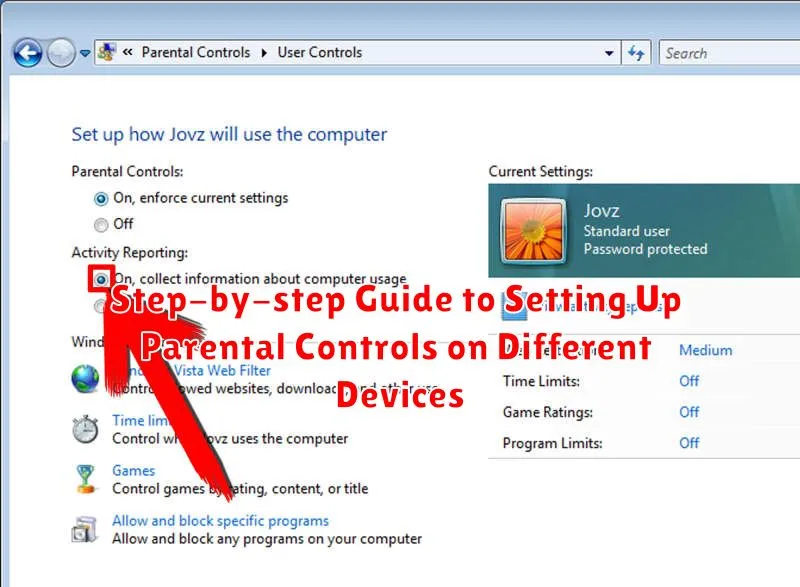
Computers (Windows/macOS):
Windows offers built-in Family Safety features accessible through your Microsoft account. These allow you to set screen time limits, filter websites, and view activity reports. macOS also provides Screen Time features within System Preferences enabling similar controls, including app limits and communication restrictions.
Mobile Devices (iOS/Android):
For iOS devices (iPhones, iPads), utilize Screen Time in Settings. This feature helps manage app usage, set content and privacy restrictions, and schedule downtime. Android devices vary slightly by manufacturer but generally offer parental control options within the device settings or through Google’s Family Link app. Family Link provides extensive controls, including app approvals, location tracking, and usage limits.
Game Consoles (Xbox/PlayStation/Nintendo Switch):
Most game consoles offer robust family management settings. Xbox provides family accounts and content restrictions through its settings. PlayStation allows for the creation of child accounts with adjustable gameplay settings and spending limits. Nintendo Switch offers parental controls through a dedicated mobile app that allows for play time management and content restrictions.
Web Browsers:
Several web browsers offer extensions and settings to enhance safety. Consider implementing these alongside device-specific controls.
Customizing Parental Control Settings for Age-Appropriate Access
Tailoring parental control settings to your child’s age and maturity level is crucial for a balanced online experience. Generic settings may either over-restrict or under-protect. Consider the following age-based customization strategies:
Younger Children (Preschool – Early Elementary)
Prioritize whitelisting, allowing access only to pre-approved websites and apps. Disable search engine functionality and restrict in-app purchases.
Pre-teens (Late Elementary – Middle School)
Introduce content filtering based on age ratings and categories like violence, gambling, and mature themes. Set time limits for specific apps and overall screen time.
Teenagers (High School)
Focus on monitoring and open communication. While content filtering can still be valuable, emphasize responsible online behavior. Consider allowing more autonomy while maintaining oversight on social media interactions and online safety practices.
Monitoring and Managing Your Child’s Online Activity
Actively monitoring your child’s online activity is crucial for ensuring their safety and well-being. While parental controls provide a strong foundation, they are not foolproof. Regularly reviewing their online interactions allows you to understand their digital habits and identify potential risks.
Most parental control software offers activity reports that summarize websites visited, apps used, and search terms entered. Review these reports frequently to gain insights into your child’s online behavior. Look for any red flags such as visits to inappropriate websites, excessive screen time, or communication with strangers.
Open communication with your child is essential. Discuss their online experiences, their favorite apps and games, and any concerns they may have. Encourage them to come to you if they encounter anything upsetting or uncomfortable online.
Establish clear expectations and boundaries for online behavior. Discuss appropriate online etiquette, the importance of privacy, and the dangers of sharing personal information. Reinforce the idea that the online world is an extension of the real world and the same rules of respect and safety apply.
Tips for Effective Communication with Your Child about Online Safety
Open communication is crucial for ensuring your child’s online safety. Talk openly and honestly with your child about potential online dangers, including cyberbullying, inappropriate content, and online predators.
Start early. These conversations should begin at a young age and evolve as your child grows and their online interactions become more complex.
Emphasize responsible online behavior. Teach your child about protecting their personal information, thinking before they post, and being respectful to others online.
Listen actively. Encourage your child to share their online experiences, both positive and negative. Create a safe space for them to come to you with questions or concerns without fear of judgment.
Explain the rules and their purpose. Clearly explain the reasons behind the parental controls you implement. Help your child understand that these measures are in place to protect them, not to restrict them unnecessarily.
Collaborate, don’t dictate. Involve your child in the process of setting online boundaries. This collaborative approach can foster a sense of responsibility and encourage open dialogue.
Troubleshooting Common Parental Control Issues
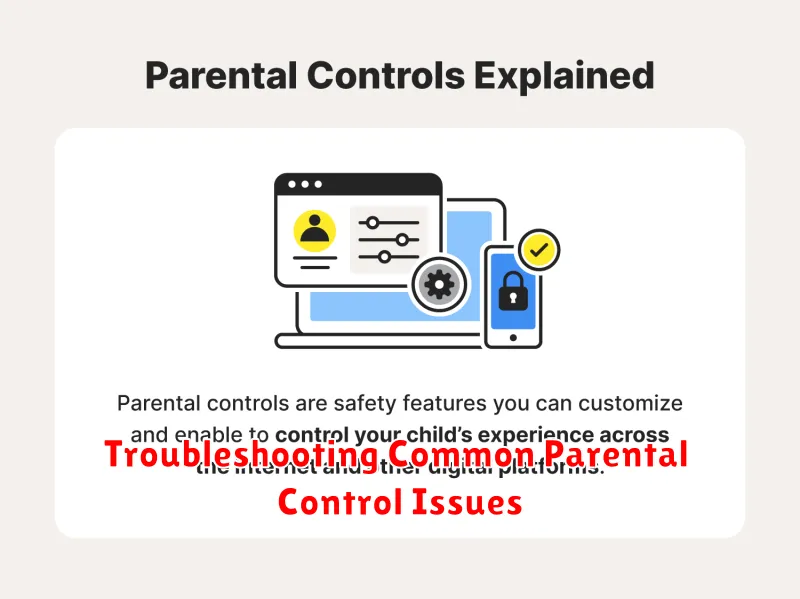
Occasionally, you may encounter issues with your parental control settings. This section addresses some common problems and provides solutions.
Software Conflicts
Sometimes, other software can conflict with parental controls. Check for compatibility issues between your security software and parental control applications. Try temporarily disabling other software to see if the conflict resolves.
Child Bypassing Controls
If your child manages to bypass the restrictions, review the settings. Ensure the controls are configured correctly for their age and maturity level. Consider password-protecting the settings to prevent unauthorized changes.
Overly Restrictive Settings
Parental controls that are too strict can block legitimate content. Adjust the filtering levels to find a balance between safety and accessibility. Whitelist specific websites that are necessary for school or other activities.
Software Malfunctions
If the software itself is malfunctioning, try restarting the device or reinstalling the application. Consult the software’s documentation or support resources for troubleshooting specific error messages.
